When a brush feels unreliable, downloading another brush pack is rarely the best first experiment. Start with one plain brush and find out what changes when you lift the pen.
Two controls, different jobs
Adobe distinguishes opacity, which limits paint transparency within a continuous stroke, from flow, which controls how quickly paint builds as you move. With a standard brush, going over the same area without releasing the stroke does not exceed its opacity limit. Lift and paint again, and another application can build on top. Lower flow gives a more gradual buildup while remaining bounded by the opacity setting.
The Brush Settings panel adds another layer of behavior. Adobe’s Transfer controls can connect opacity and flow to pen pressure. That means the numbers in the options bar do not explain the whole brush: pressure settings may be changing what reaches the canvas as well.
A five-minute calibration
This is our suggested diagnostic exercise. Use an ordinary round Brush in Normal mode on a new layer, with layer opacity at 100%. Temporarily disable pressure-dependent opacity and flow, texture, scattering and airbrush behavior so there are fewer variables.
- Set brush opacity to 25% and flow to 100%. Draw a loop, crossing the same area without lifting. Then lift and draw another loop over it. Compare the crossings.
- Set opacity to 100% and flow to 10%. Repeat the movement and watch the color accumulate during the continuous stroke.
- Restore pressure control for one parameter at a time. Make a light-to-heavy stroke and label the result on your test sheet.
These are diagnostic settings, not universal painting presets. The useful outcome is being able to predict what your own brush will do before applying it to a face.
Look at marks, not a watercolor imitation
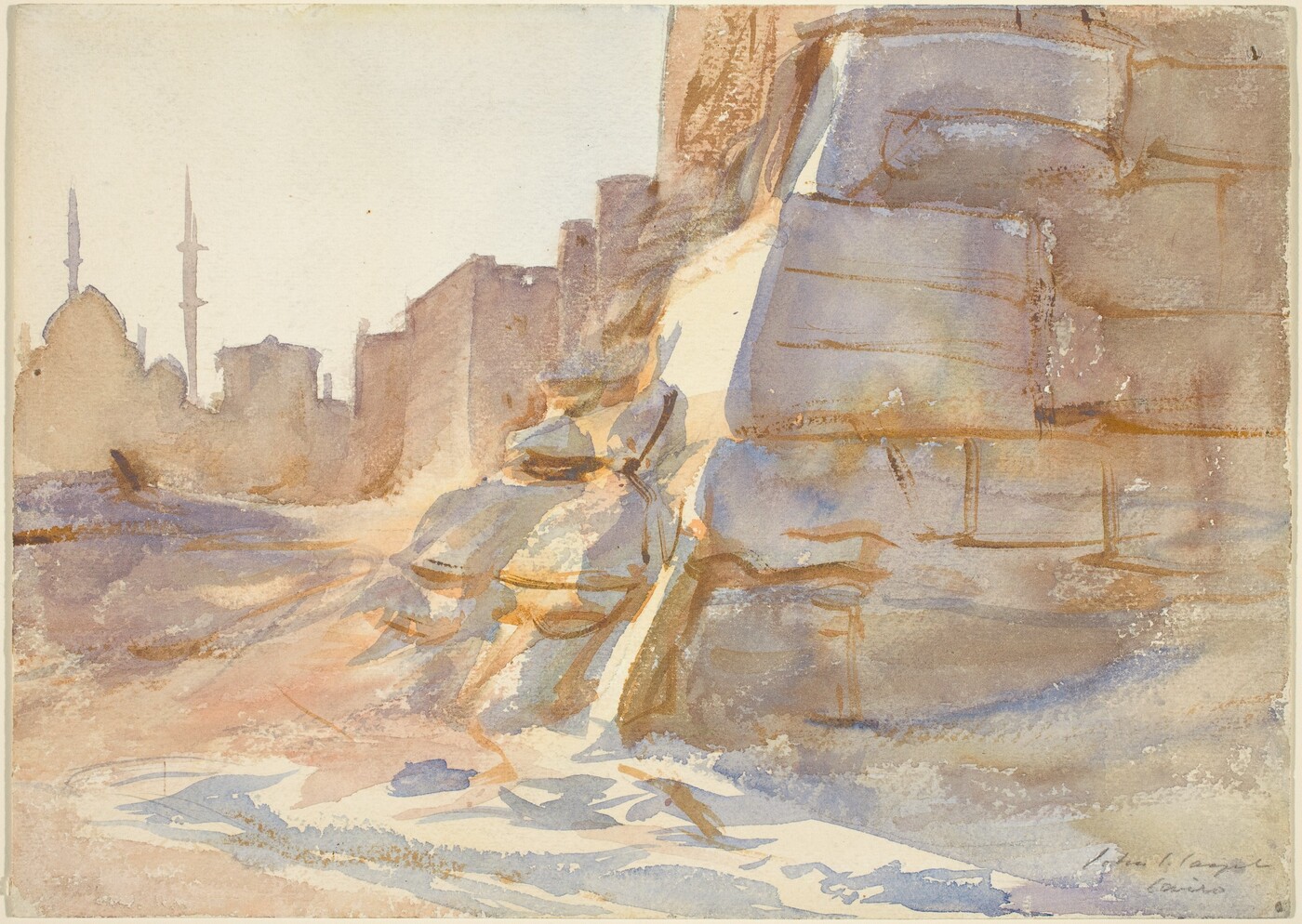
Sargent’s Cairo, reproduced above from the National Gallery of Art, is watercolor over graphite. It is not a demonstration of digital opacity. Our reason for studying it is the relationship between broad light areas and selective dark marks. The picture does not ask every passage to contain the same density of information.
When painting a digital study from it, first separate those broad areas. Then decide whether an edge needs one deliberate opaque mark or several gentle passes. Trying to build every shape with the same transparent brush can make the entire image feel indecisive.
Keep one reliable default
Save a simple preset after the test and return to it when a more elaborate brush becomes confusing. If a stroke still behaves unexpectedly, inspect the active layer and brush mode before changing the artwork. A predictable tool leaves more attention available for shape, value and the next useful mark.